Online booking
How a client books on their own, what they see, how the booking is confirmed and what lands in the dashboard.
Online booking is the form on the public page. The client picks a service and a time; the booking is confirmed at once, no call-back needed.
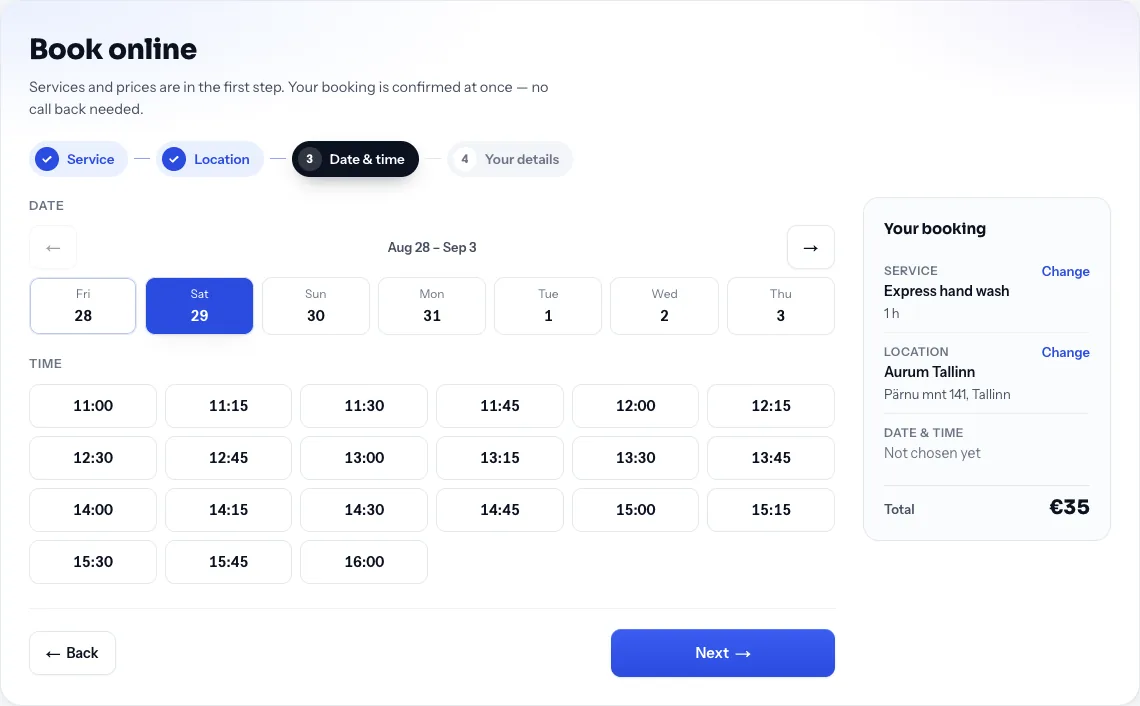
What the client does
The form is a wizard: one question per screen, a progress bar on top. Choosing a service, a location or a time opens the next step by itself; "Back" or a click on a passed step in the bar returns. The "Your booking" panel (on a phone — before the contact fields) collects the choices and the total, with "Change" next to each row.
- Presses "Book online" in the page header (or "Book" next to a service — then the service is already chosen and the wizard opens on the next step).
- Service — a card with the description, the price and the duration. This IS the company price list: there is no separate "Services and prices" section on the page any more, because two identical lists on one page is one list too many. With a single service the step is skipped.
- Location — only for companies with several branches.
- Date & time — the day strip and the free slots of the chosen day. Only free ones are shown — given the branch's and employees' working hours, the service duration, existing bookings and the buffer.
- Your details — name, phone, e-mail, communication language, optionally a comment for the company; the data-processing consent and the "Book" button. The time is reserved immediately.
If the slot was just taken, the wizard returns to the "Date & time" step, says so and refreshes the list.
What happens in the dashboard
- The booking appears in the calendar marked "Online booking", and an order in the "Confirmed" status is created.
- The client, if not in the base yet, is created automatically — with the communication language from the form and the consent date.
- The client receives a confirmation e-mail (Pro and above) and a reminder before the visit; the e-mail links to the client account.
- The owner and managers receive an e-mail about the new booking if "Emails about online bookings" is on.
Settings
- Accepts online bookings — in the employee card. Online bookings are only assigned to such employees.
- Buffer between bookings and working hours — see Working hours.
- Bookings from your own public page carry no commission.