Inviting an employee
How to add an employee by e-mail: no password, a link from the invitation valid for 7 days.
Employees do not register — they are invited. The owner creates an employee card with an e-mail, Pitly sends a letter with a link, and the person sets their own password on the first sign-in.
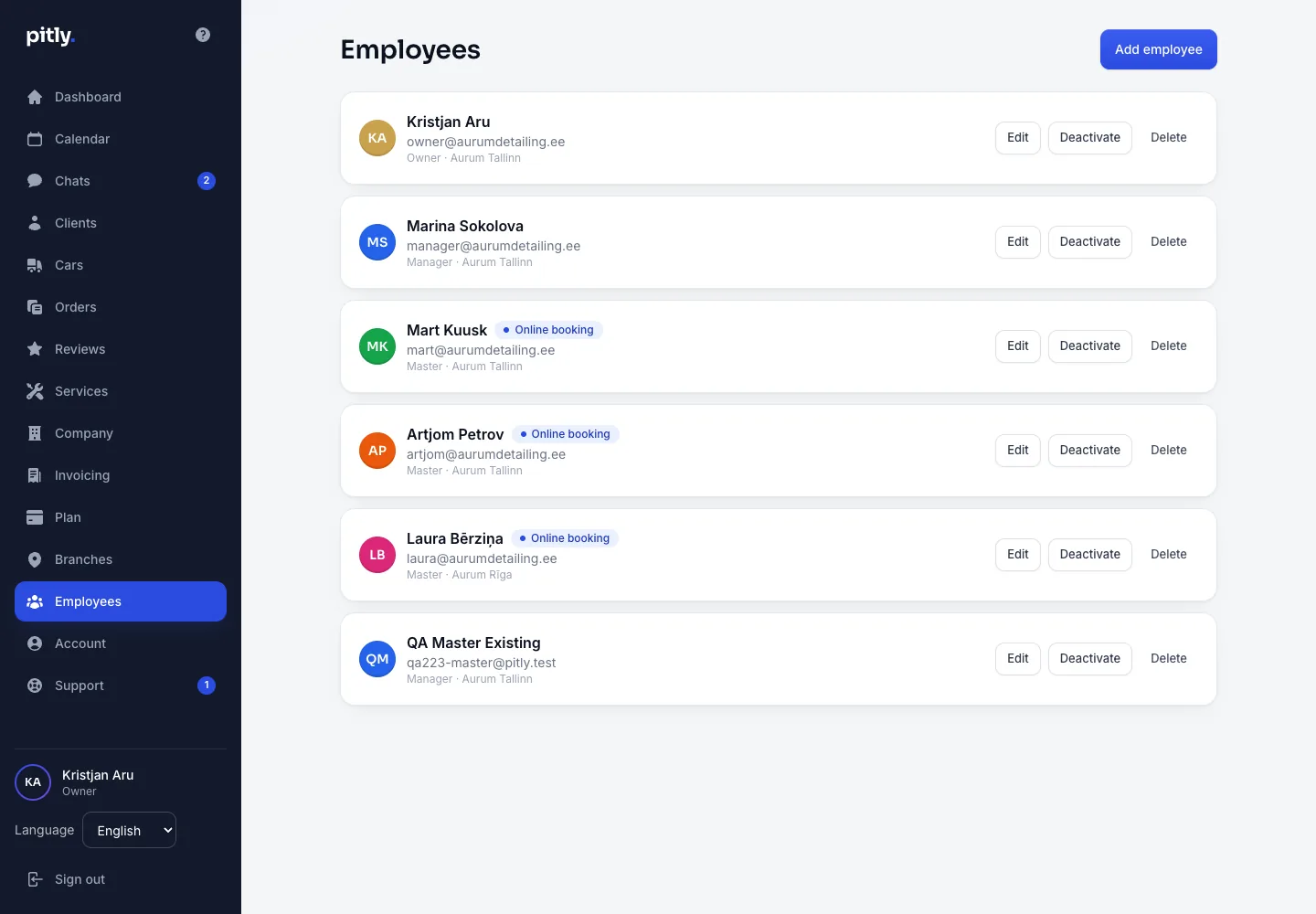
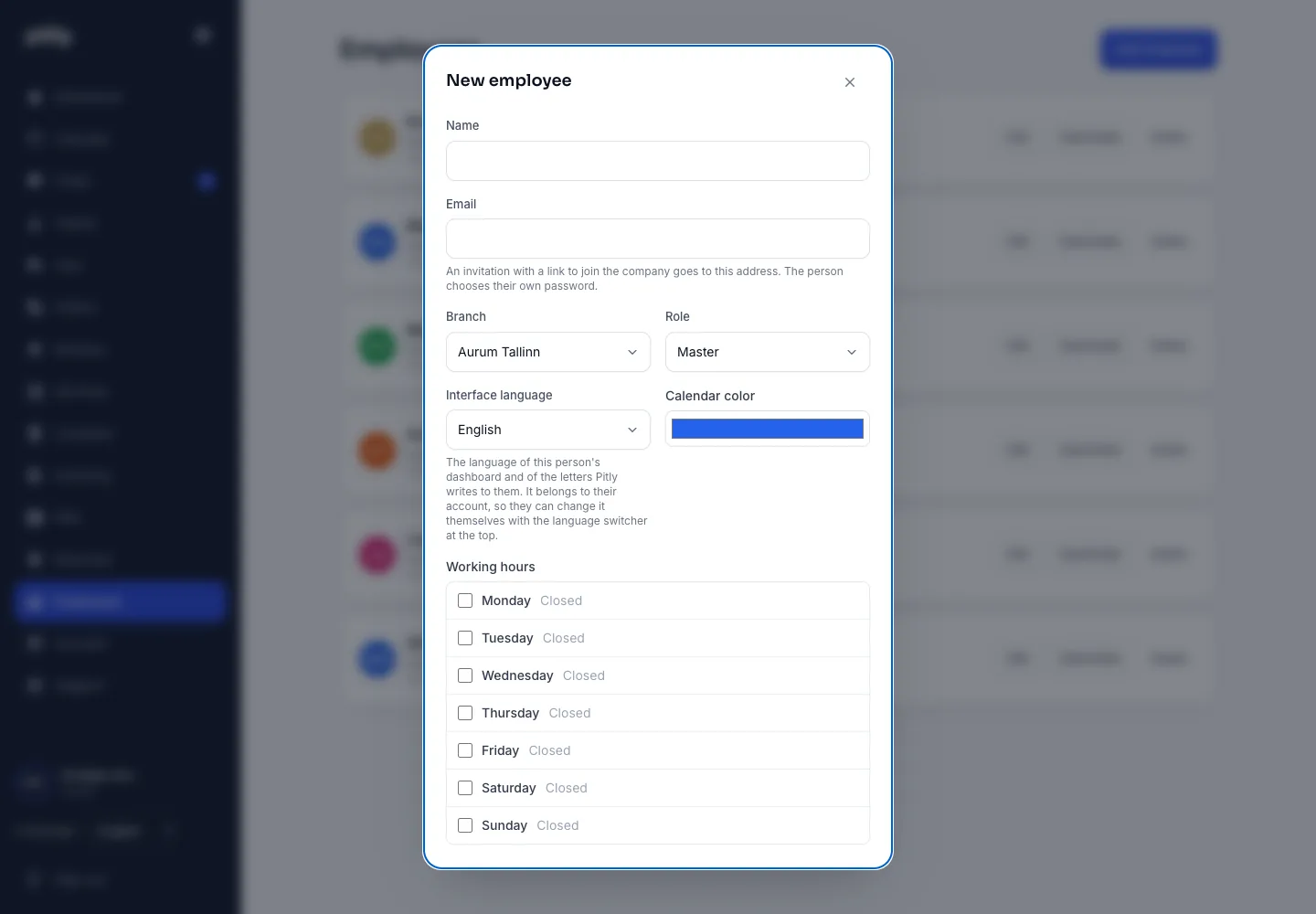
Step 1. Create the card
- Open "Employees" and press "Add employee".
- Fill in the name, e-mail (the invitation goes there), branch, role (manager or master — see Roles), calendar colour and interface language — Pitly writes to the employee in it.
- Set the working hours and, if clients should be able to book this person online, enable "Takes online bookings".
- Save — the invitation is sent at once; the list shows "Invitation sent".
Step 2. The employee opens the letter
The letter has a "Join the company" button. The link opens the invitation page:
- if the address has no Pitly account yet, the person sets a password (and repeats it) and presses "Set the password and join";
- if an account already exists (say, the person works at another company on Pitly), "Join" is enough — the company is added to their account, the password stays.
Then comes the "You are on the team" screen and sign-in with e-mail and password. The interface opens in the language chosen in the card; the employee can change it themselves.
If the link did not work
- The link is valid for 7 days. Expired — press "Send again" in the employee card; the new letter carries a new link. Resending is possible once every few minutes.
- "This invitation has already been accepted" — the employee is in the team already; they sign in with e-mail and password.
- "This link does not work" — the mail client cut the address; open the full link or send the invitation again.