Registration and e-mail confirmation
How to create a company in Pitly: the registration form, the confirmation e-mail and the first sign-in.
A company in Pitly is created by its owner. Registration takes a minute, and right after it the onboarding starts — seven short steps to the first booking.
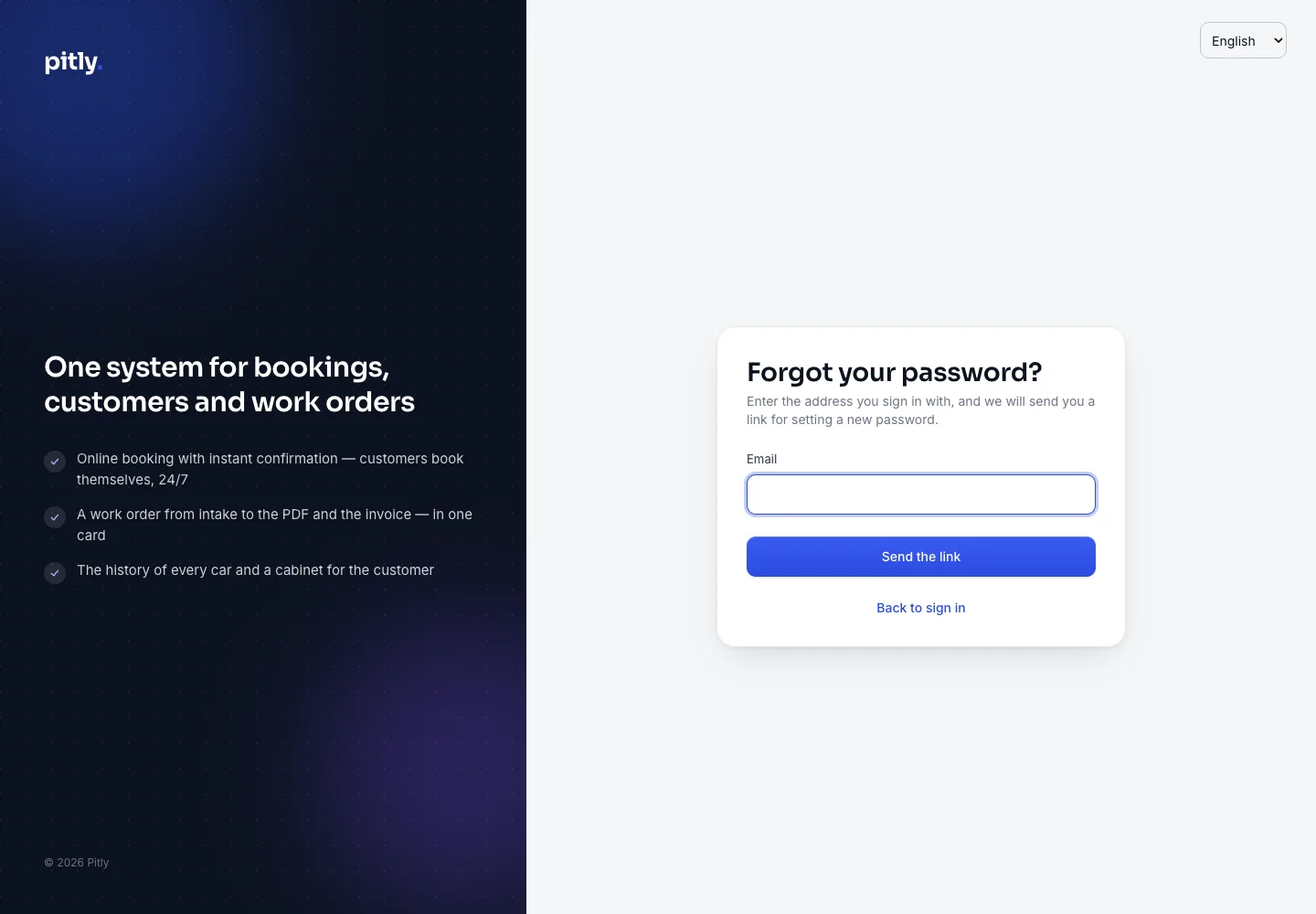
Step 1. Fill in the form
Open the dashboard's registration page ("Register your company" on the sign-in screen) and fill in four fields:
- Company name — how it will be called in the dashboard and on the public page. You can change it later.
- Your name — the owner's name.
- E-mail — you will sign in with this address; the confirmation e-mail goes there.
- Password — at least 8 characters.
Press "Create account".
Step 2. Confirm the e-mail
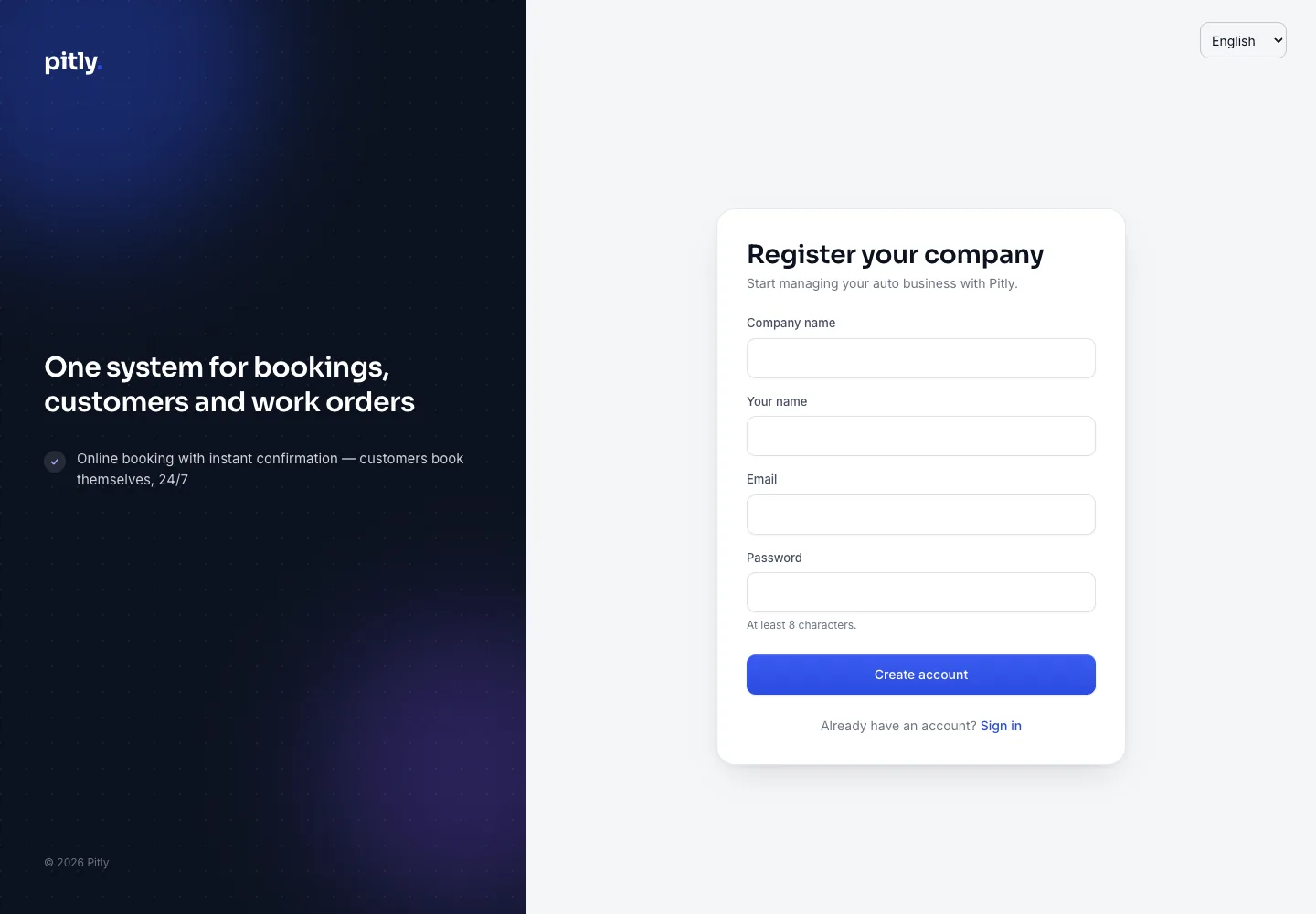
After submitting the form you see the "Check your inbox" screen. Open the e-mail from Pitly and follow the link in it.
- The link is valid for 24 hours. If it expired, register again — it takes a minute.
- No e-mail? Check "Spam" and press "Send the letter again" (once a minute).
- If the address is already registered in Pitly, the e-mail contains a sign-in and password-recovery link instead.
Until the link is opened the company does not exist yet — nothing is lost, but you cannot sign in either.
Step 3. First sign-in
Following the link completes the registration and opens the company setup. From then on sign in with your e-mail and password on the sign-in screen.
Forgot your password
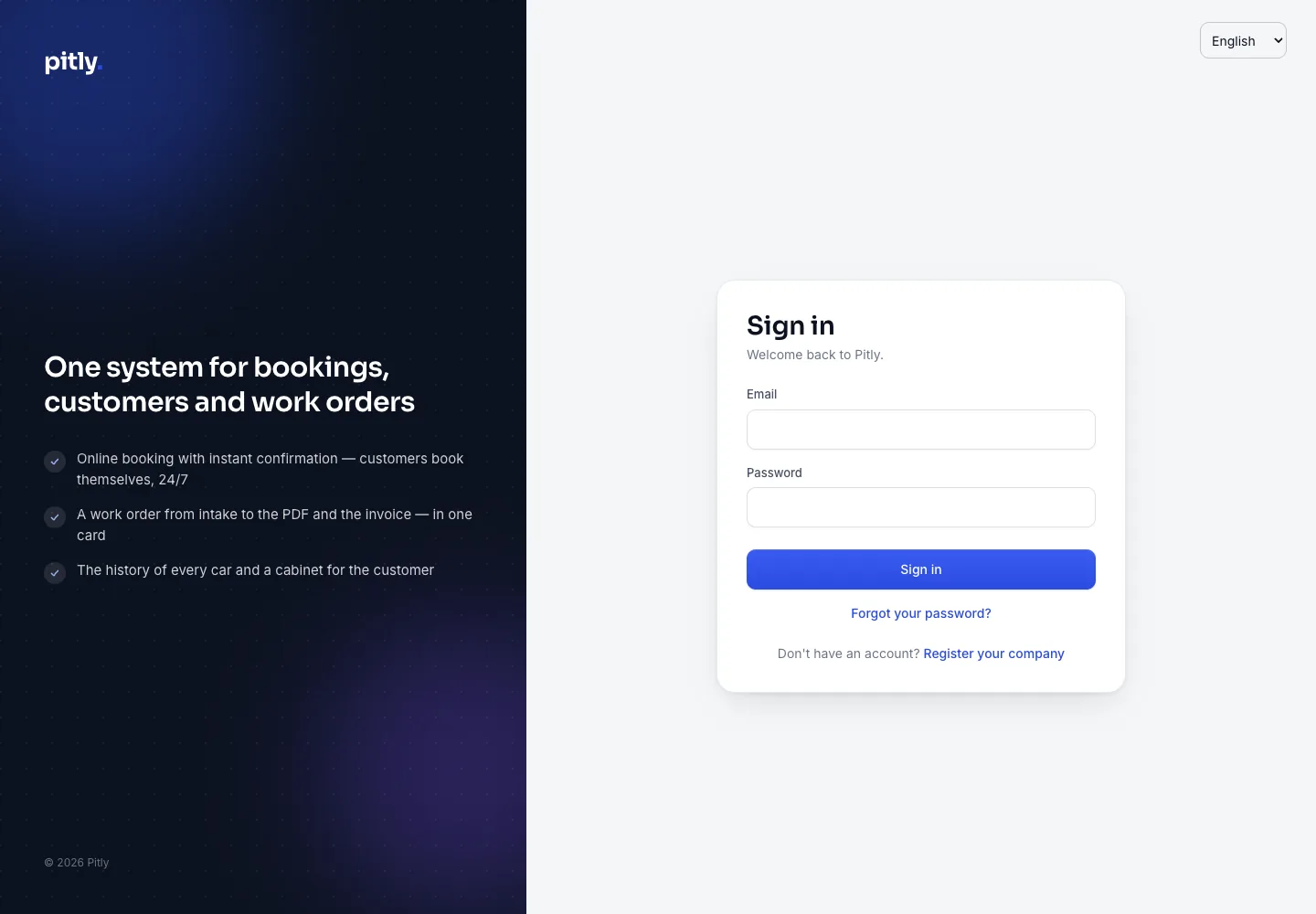
On the sign-in screen press "Forgot your password?", enter your e-mail — you receive a link to set a new password. After the change every device is signed out and has to sign in again.