Calendar
Day and week views, filters by branch and employee, a new booking from the calendar.
The calendar is the manager's main tool. It shows every booking of the company (a master sees only their own), and new online bookings appear in it on their own, without reloading the page.
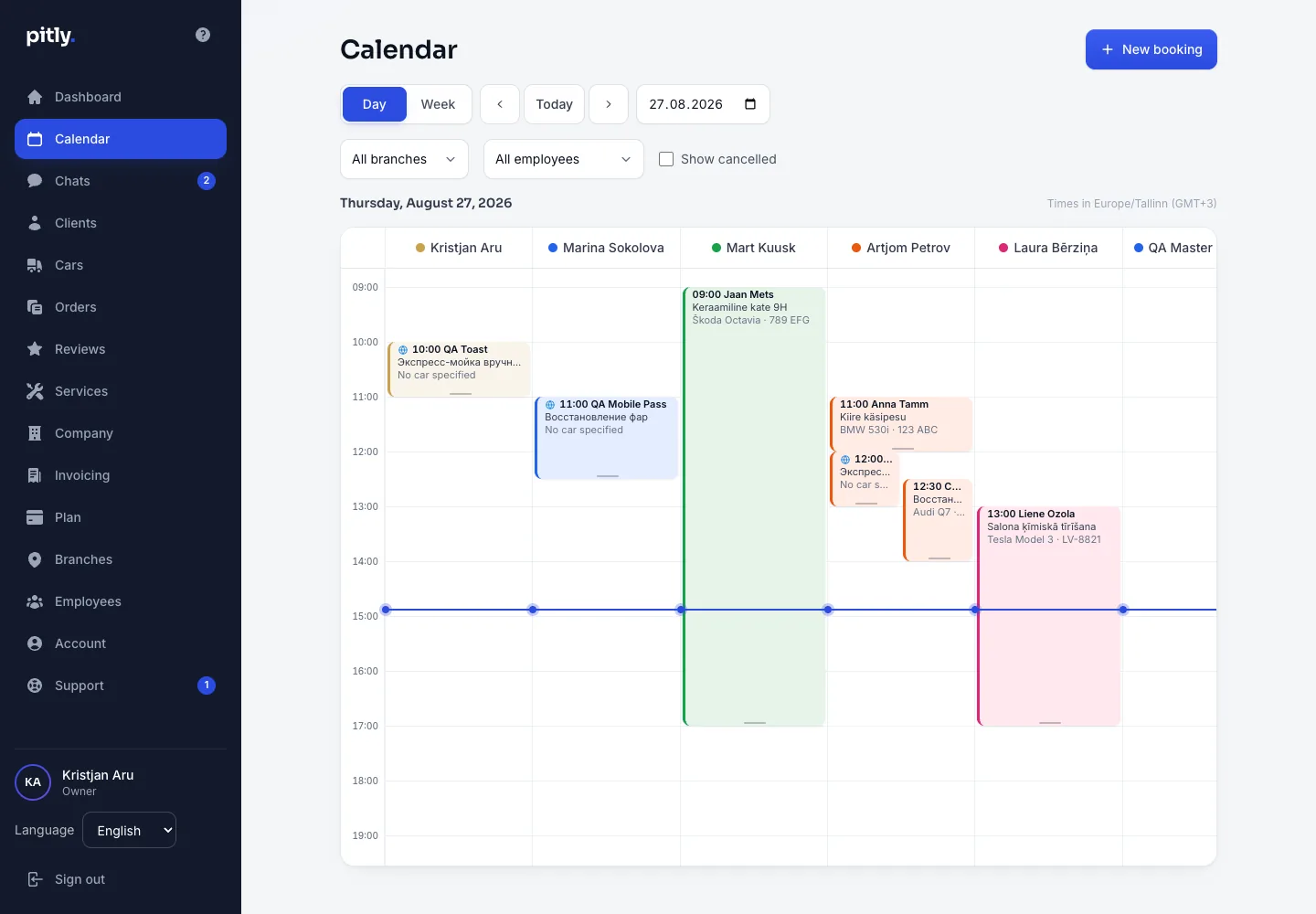
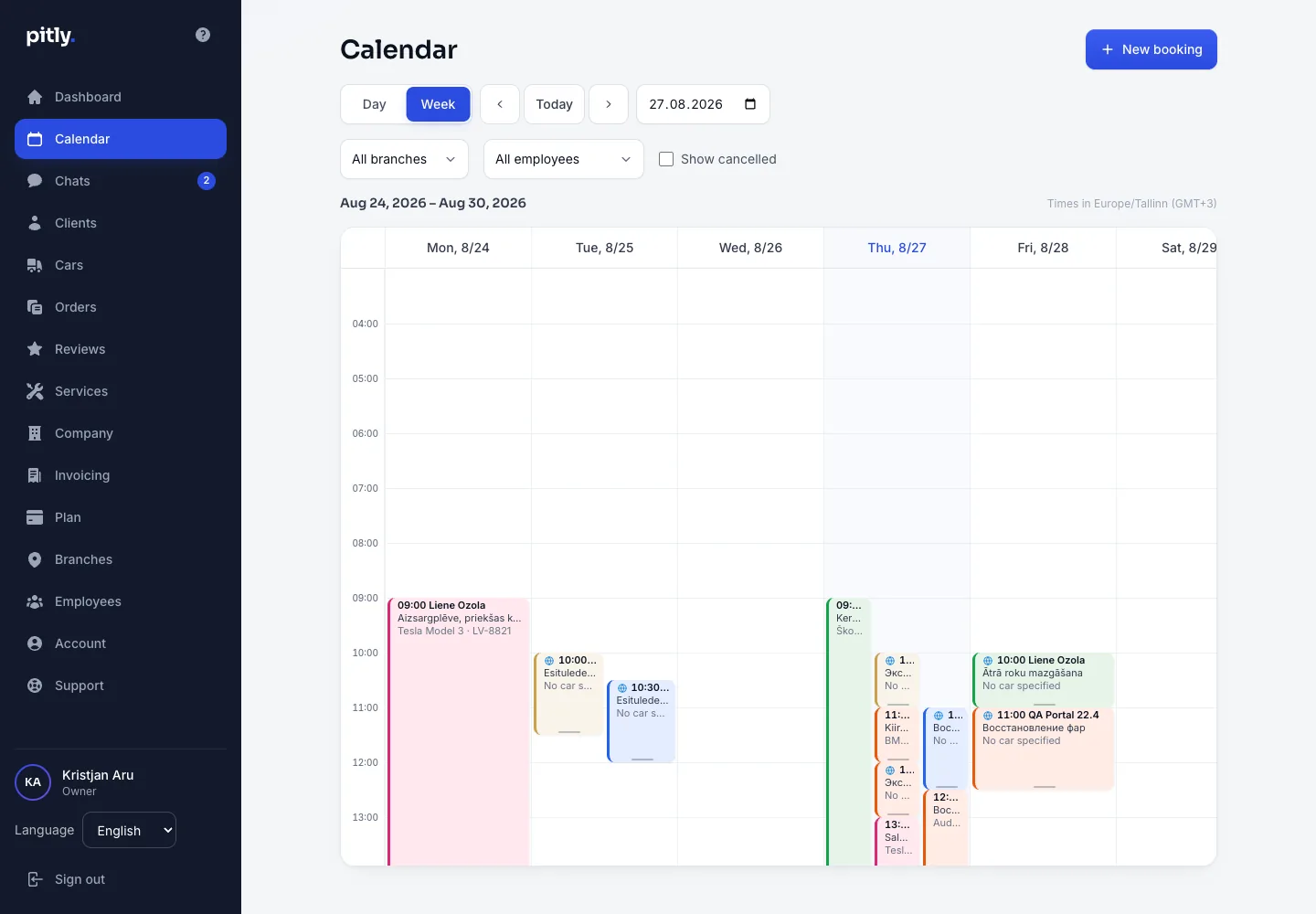
Views and filters
- Day / Week — the switch at the top; "Today" returns to the current date.
- Branch — every branch has its own calendar; "All branches" shows everything at once.
- Employee — keep one master or all of them.
- Show cancelled — cancelled bookings are hidden by default.
- Time is shown in the company's time zone (set in the "Company" section).
New booking
- Press "New booking" or click a free time in an employee's column.
- Choose the client, then the car (you can book without a car and add it later), the service, the branch and the employee ("Any employee" lets the system pick a free one).
- Pick a free slot from the list: only genuinely free ones are shown, taking into account the branch's and employee's working hours, the service duration, other bookings and the buffer.
- Save. The booking is immediately visible in the calendar; if the client has an e-mail, a confirmation is sent (Pro plan and above).
The card colour is the employee's colour, set in the employee card.
The booking card
Clicking a booking opens a panel: client, car, service, price, time, status, source (online booking or dashboard) and internal notes the client never sees. Rescheduling and cancelling happen here too — see Bookings and rescheduling.